Blog / How do I add email or SMS/MMS sharing to an existing design?
How do I add email or SMS/MMS sharing to an existing design?
2023-03-20 · Sue Breeze · Breeze Booth, DSLR Remote Pro, Quick Tips
I was asked at PBX how to add sharing options to an existing Breeze DSLR Remote Pro event or profile.
Today’s post explains how to add email and SMS/MMS sharing to existing designs in Booth (DSLR+Windows) aka DSLR Remote Pro 3.18.2.1
Add email and text options to Webcam Photobooth events in the same way.
Starting from scratch? Use the Photobooth Setup Wizard instead of these instructions.
Working with profiles? Remember to load the profile before you start, and save the updated profile when you finish.
Tell DSLR Remote Pro to share photos by email and/or text
Start DSLR Remote Pro and if necessary load your design or profile.
Before sending emails from Breeze you need to set up the email server settings. You only need to do this the first time you send emails from the booth. How to add your email account details.
Check email sharing on the Output screen
This tells the program that you want to offer guests the option to share by email.
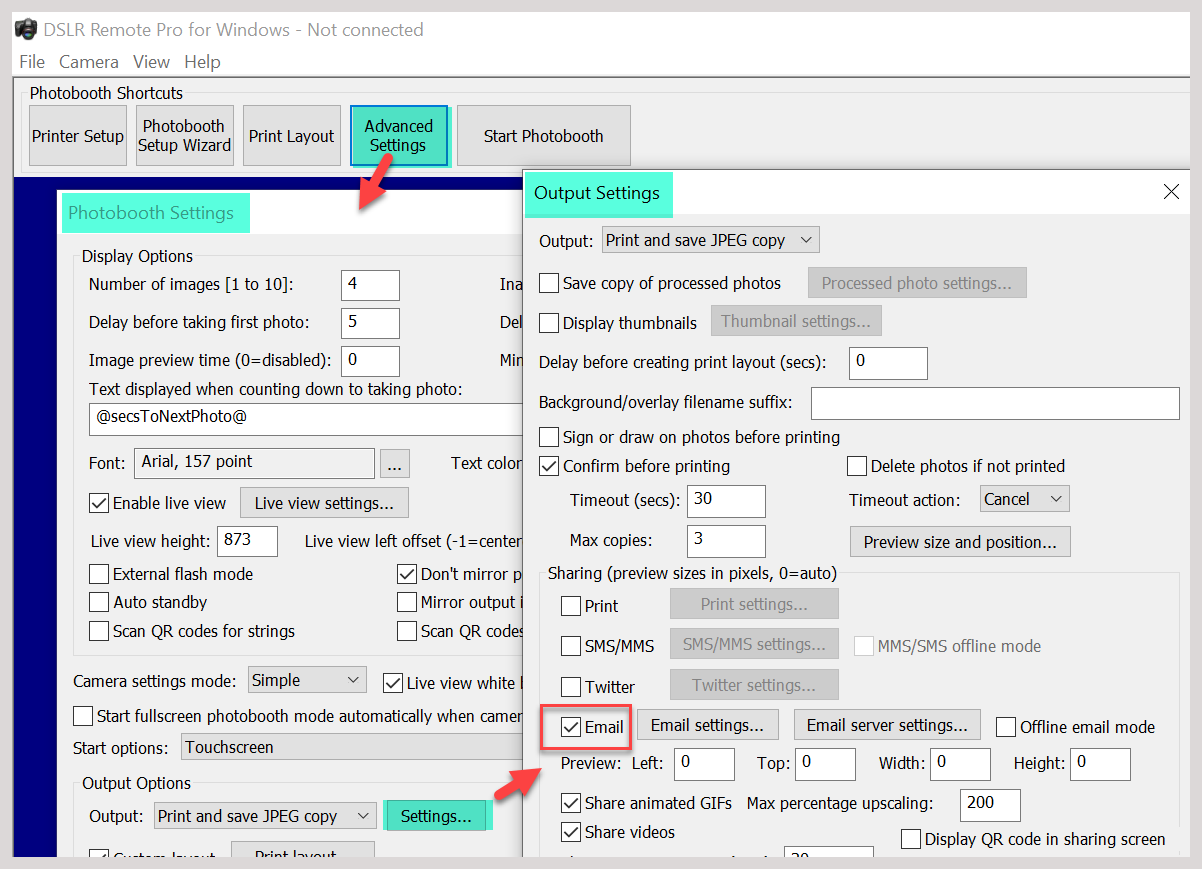
Setting the flag which tells DSLR Remote Pro to offer sharing images by email
Create or update a sharing screen
Check whether you already have a sharing screen share.jpg in your PhotoboothImages folder.
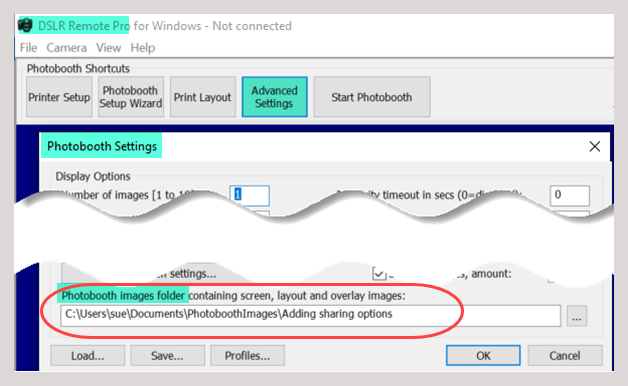
Current PhotoboothImages folder (Breeze DSLR Remote Pro 3.15.5)
Screen graphic share.jpg
- If there is no share.jpg in in the PhotoboothImages folder use an image editor to create one.
The new screen graphic should be the same size in pixels as the other screens. Include buttons for your sharing options and to exit the screen.
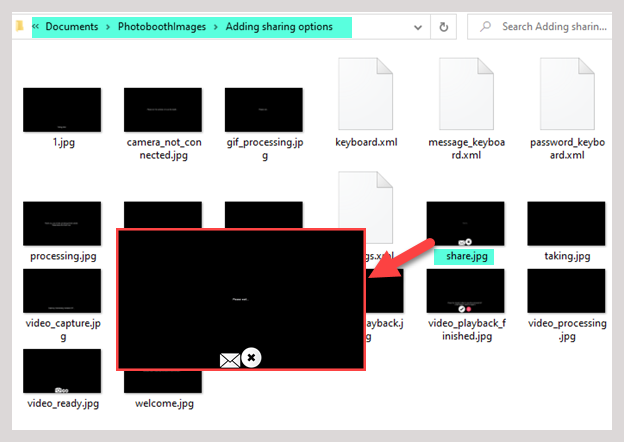
Sharing screen graphic share.jpg with email and exit buttons (Breeze DSLR Remote Pro 3.15.5)
- If you already have a sharing screen, add an email button to share.jpg
NB: You can copy the sharing icons we provide for the setup wizard, or use your own png images
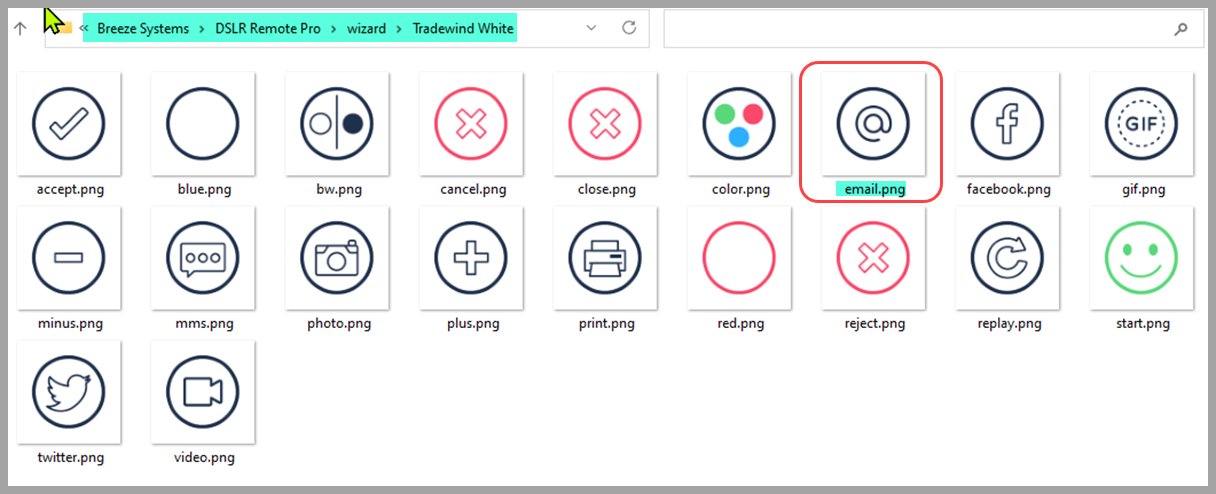
Icons used by the setup wizard can be found at C:\Users\…\Documents\Breeze Systems\DSLR Remote Pro\wizard. Copy these or use your own png image. (Image shows icons used by Tradewind White)
Add touch screen actions to the sharing screen
Open the touch screen editor
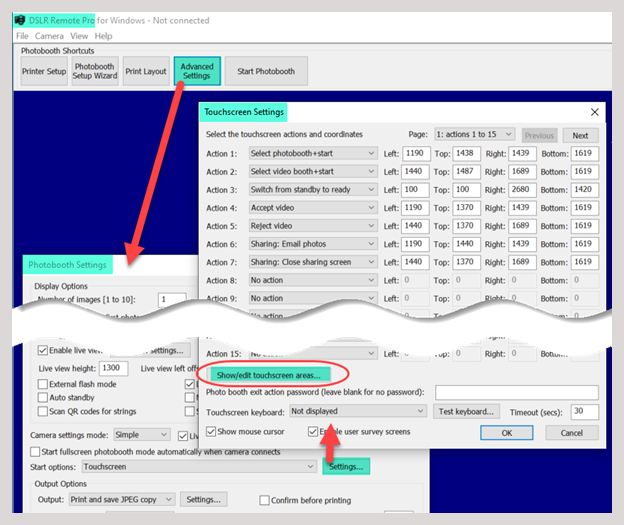
Opening the touch screen editor (DSLR Remote Pro 3.15.5)
- Right click and select Share: share.jpg screen. This displays your share.jpg graphic, the area of the screen covered by the image, and any actions which have already been already set up.
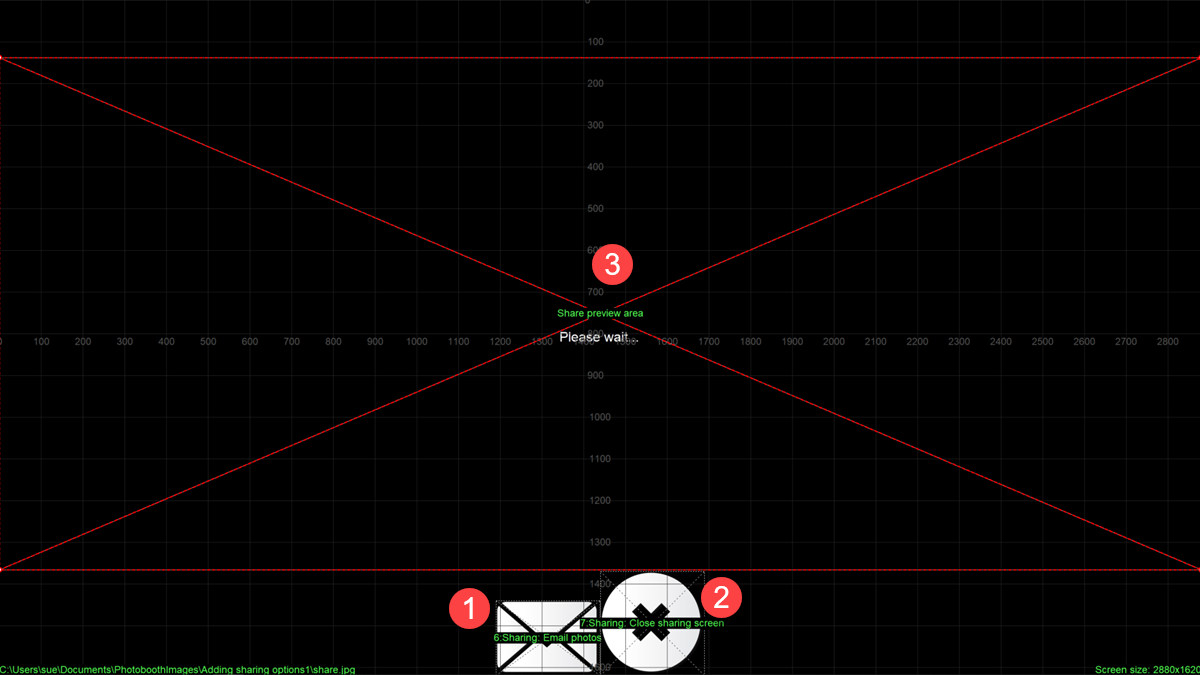
Adding touch screen actions which match the sharing screen graphic (Breeze DSLR Remote Pro 3.15.5)
- Right click on an unused part of the screen
- Add the action Sharing: Email photos.
- Drag and drop this action to cover your email button (1)
- If you don’t already have a close action, add a second action Sharing: Close sharing screen
- Drag and drop the Close action over your close button (2)
- If these buttons overlay the image area, move/resize the image to separate them (3)
- Right click once more to exit the touch screen editor, saving your changes.
Working with profiles: remember to save the updated profile before you leave. Troubleshooting profiles
More about sharing by email
Find out how to collect email addresses used to share images, customize email content, share GIFs and find the best balance between sharing images quickly and sending the highest quality images here
Sharing at large and busy events, touch free sharing and sharing statistics are covered here
Adding SMS/MMS text sharing to your design
Add text based sharing in the same way.
You will need a share.jpg screen in your PhotoboothImages folder, which includes text and exit buttons.
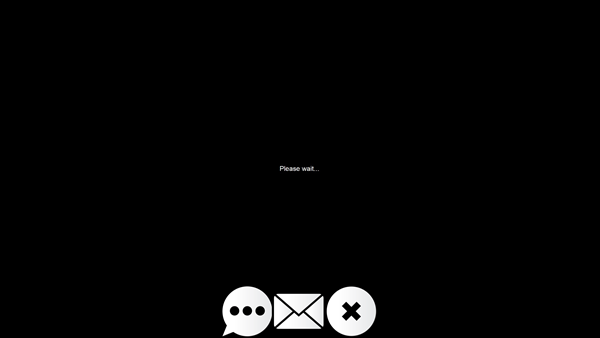
Sharing screen graphic share.jpg with text, email and exit buttons (Breeze DSLR Remote Pro 3.15.5)
If this is the first time you have added text based sharing, add your Twilio account details to DSLR Remote Pro.
- Check MMS/SMS sharing on the Output Settings screen
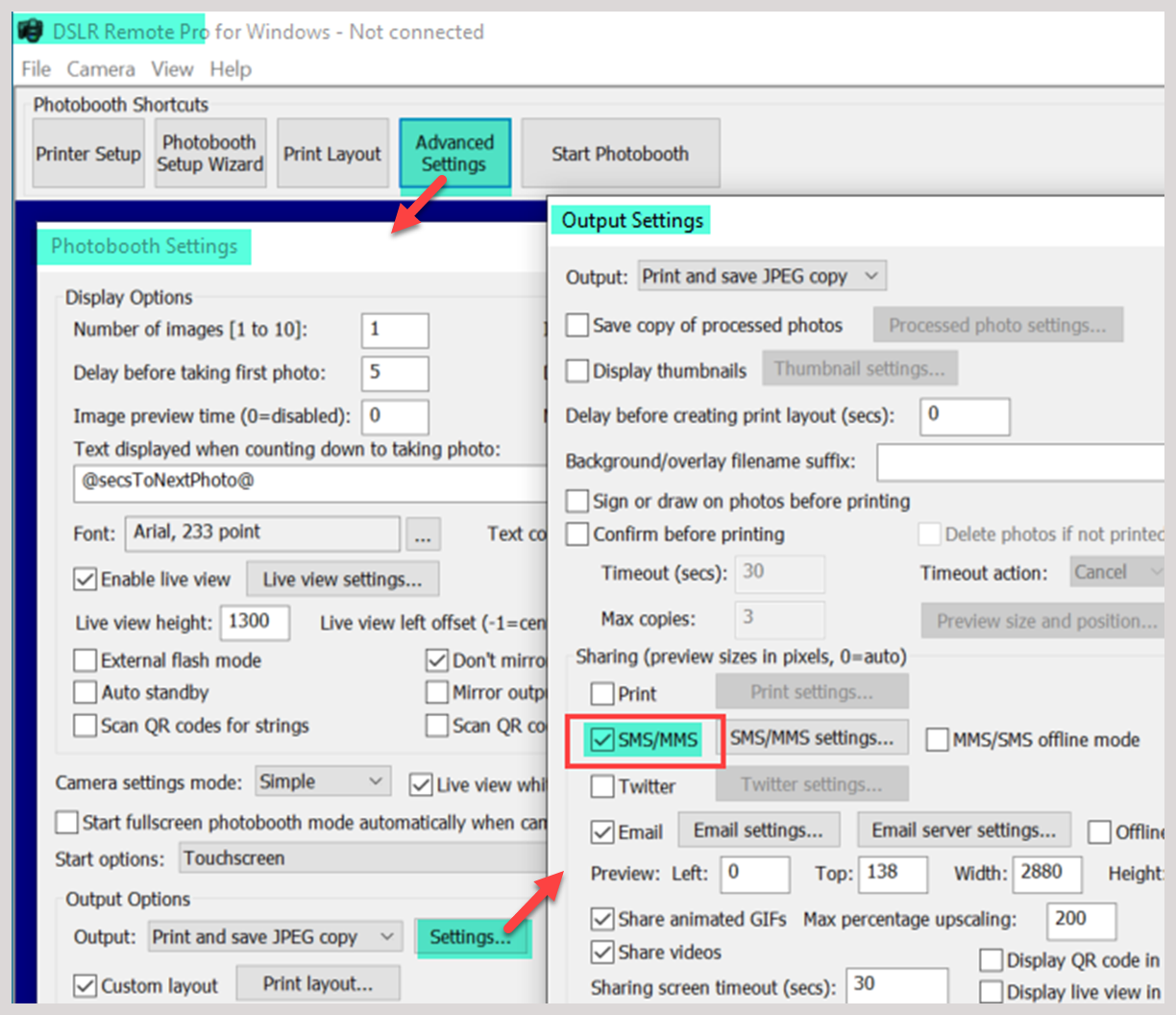
Setting the flag which tells DSLR Remote Pro to offer sharing images by SMS/MMS
Add the MMS/SMS touch screen action to the sharing screen
Go bck to the touch screen editor and add the Sharing: Send MMS/SMS action to the sharing screen
- Right click on an unused part of the screen
- Add the action Sharing: Send MMS/SMS.
- Drag and drop this action to cover your text button
- If you don’t already have a close action, add a second action Sharing: Close sharing screen
- Drag and drop the Close action over your close button
- If these buttons overlay each other or the image area, move/resize the actions to separate them
- Right click once more to exit the touch screen editor, saving your changes.
Working with profiles: remember to save the updated profile before you leave. Troubleshooting profiles
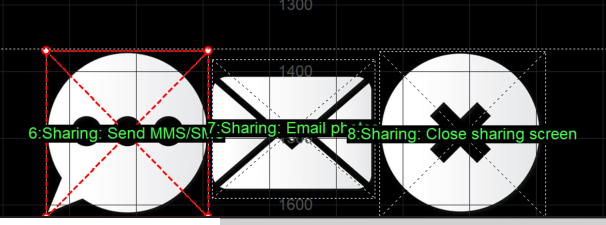
Adding the Sharing: Send MMS/SMS action to the sharing screen graphic (Breeze DSLR Remote Pro 3.15.5)
More about sharing by MMS/SMS
Not sure whether to send SMS+Image, SMS or MMS texts? Find the answer and learn how to customize text messages, send texts via Breeze Hub or use touch free texting here
Find out how to view cell phone numbers used to share images and sharing statistics here
© Breeze Systems March 2023
emailSMS/MMSSocial sharing